


Answers for common questions
Browse the topics below. Still stuck? Contact support or open a ticket in the customer portal.
SiARA Shield is the cutting edge fraud prevention solution, featuring innovative technology based on AI and human biological encryption techniques. The platform provides dual-layer protection for your website and systems against malicious bots and spam attacks. For more information, please visit: https://www.cybersiara.com/
To create an account, you must sign up using the User Portal and provide all the information required. The User Portal can be found here: https://mycybersiara.com/Register
Once you have completed the sign up process, you will receive an email containing a link designed to verify your email address. Your account will not be activated until you have clicked this link. If it appears that your email verification did not arrive, please check your spam or junk folder.
To reset your password, click on the ‘Forgot password’ link on the log in page, or here: https://mycybersiara.com/ForgotPassword/
Then please enter the email you registered to the system and the link to reset your password will be emailed to you if you have a registered email address. Please check your junk mail in case you did not receive any email.
You need to create and activate an account in order to generate a Public and Private Key. Once your account is activated, log in to your account with your user name and password here: https://mycybersiara.com/
While logged in, go to the ‘Get SiARA Shield’ page and register for a new site. The system will then generate your Public and Private Key once the site registration is complete.
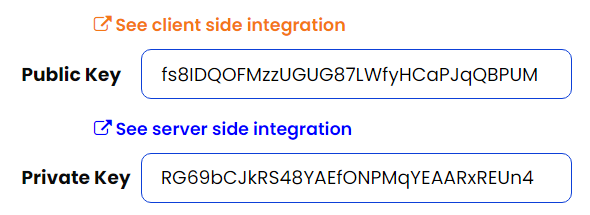
To install SiARA Shield on a local host or local machine, you need to download the relevant code here: https://docs.cybersiara.com/integration/technologies
After choosing and downloading the right code, or installing the plugin on your site, use ‘TEST-CYBERSIARA’ as a Public and Private Key. For more information, please visit: https://docs.cybersiara.com/integration/technologies
Please check your spam or junk folder, as email verifications can sometimes be diverted to these parts of your email account. To stop this happening, add support@cybersiara.com to your whitelist or email contact list.
Your account log in page is found here: https://mycybersiara.com
Your User ID can be either your 6-digit user ID or your email address. The password is the one you created when registering for an account.
You can add SiARA Shield to your website in three simple steps.
- Log in to your User Portal at https://mycybersiara.com/
- Select ‘Get SiARA Shield’ or click on the link in the left-hand menu. You will need to provide information, including a name for your site, and the domain you wish to protect. You then need to choose the preferred plugin theme for your widget. There is a range of four FREE plugin themes, as well as an option to add your own logo and background image to the widget.
- Click on the ‘Get SiARA Shield’ button to generate your Public and Private Key. Remember that you must verify your site before adding SiARA Shield to it, otherwise SiARA Shield will not work.
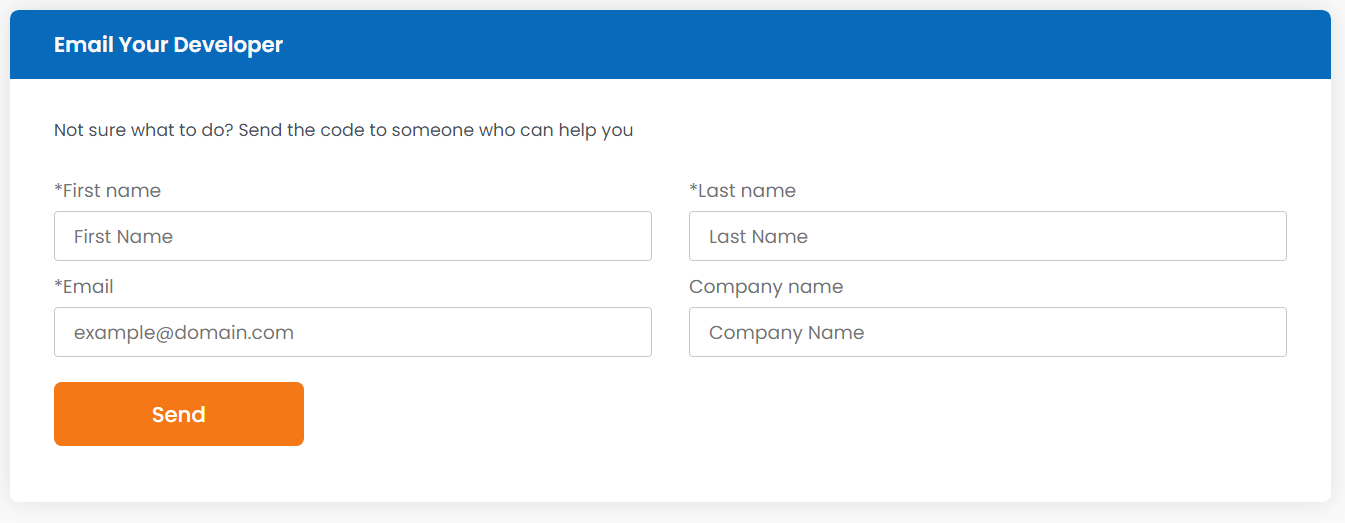
With the smart SiARA Shield code generator, it is easy to add SiARA Shield to your website. If you are using a professional developer, you can automatically email the instructions to them, along with all the relevant codes. This will enable your developer to install SiARA Shield for you. Simply head to https://mycybersiara.com/, click on ‘Get SiARA Shield,’ scroll to the bottom of the page and enter your developer’s details into the ‘Email Your Developer’ section.
If you have installed SiARA Shield on your website but cannot see it, take the following steps:
- Check your web browser for ‘AdGuard AdBlocker.’ If it is installed, disable it.
- Check that ‘JavaScript’ is enabled on your browser. SiARA Shield is based on JavaScript, so this must be enabled and supported by your web browser in order for SiARA Shield to operate effectively.
In the event that SiARA Shield challenge text is not clearly visible, take the following steps:
- Click the ‘refresh’ button next to the flashing images to reveal a new challenge.
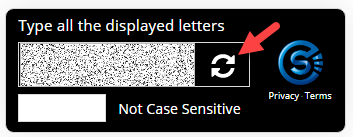
- Check that your web browser is set to 100% zoom. VICAP is based on advanced visual integration technique, which means the resolution of the images must be at the level suitable for your vision and display. The resolution of SiARA Shield flashing images will be changed by zooming in or out on your web browser, improving your ability to recognise the letters.
No. To further enhance the user experience, SiARA Shield uses state-of-the-art technology to achieve a high level of security without the need for case sensitivity. Users can type the letters in upper or lower case, saving valuable time and effort.
Yes – SiARA Shield is fully supported by WordPress and is compatible with all WordPress websites. Simply search for the SiARA Shield plugin, or click here: https://wordpress.org/plugins/siara-shield/
Further information about installing SiARA Shield on a WordPress website can be found on our documents page, here: https://docs.cybersiara.com/integration/technologies
Yes – SiARA Shield is fully supported by all HTML websites. For more information, please see our documents page, here: https://docs.cybersiara.com/integration/technologies
As a company that is focused on fraud and security, we take your privacy extremely seriously. CyberSiARA is in full compliance with GDPR regulations and requirements. We only store the information we need to enable us to provide our services. A copy of our Privacy Policy, detailing how we store and process your personal information, can be found here: https://www.cybersiara.com/privacy
On its own, an IP address does not constitute personal information because it does not identify a person, but an IP address can be combined with other information from your Internet Service Provider to identify the end-user. This type of information pairing is very difficult to achieve, however, because most ISPs adhere to very strict regulations about disclosing customer information. This makes it almost impossible to obtain the data needed to combine with the IP address to identify the person.
To verify a domain, please follow these steps:
- Log in to https://mycybersiara.com
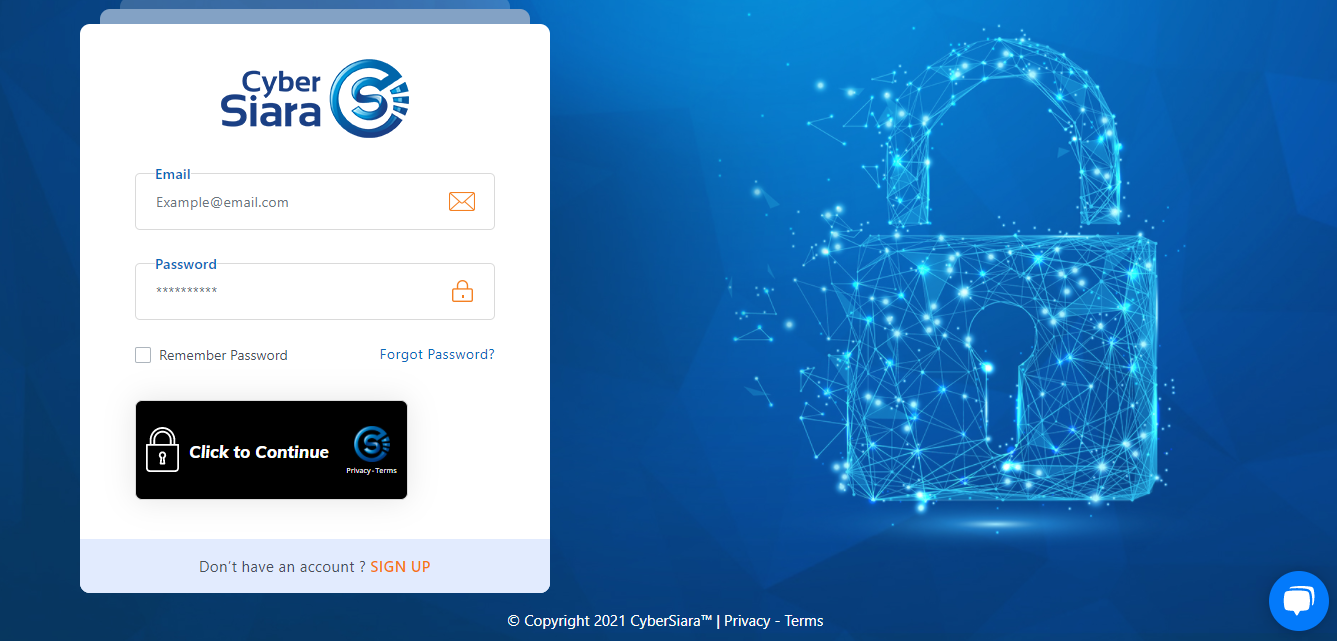
- Select ‘Integration’ from the left-hand menu.
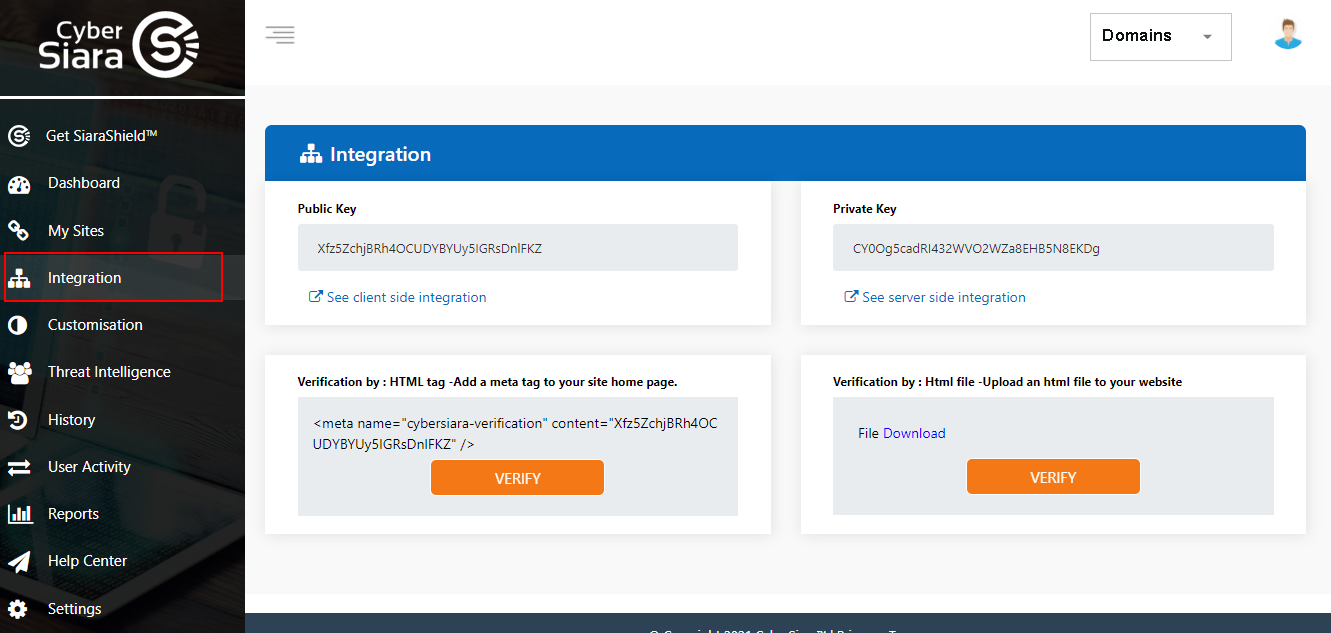
- Select your domain from the right-hand drop-down menu.
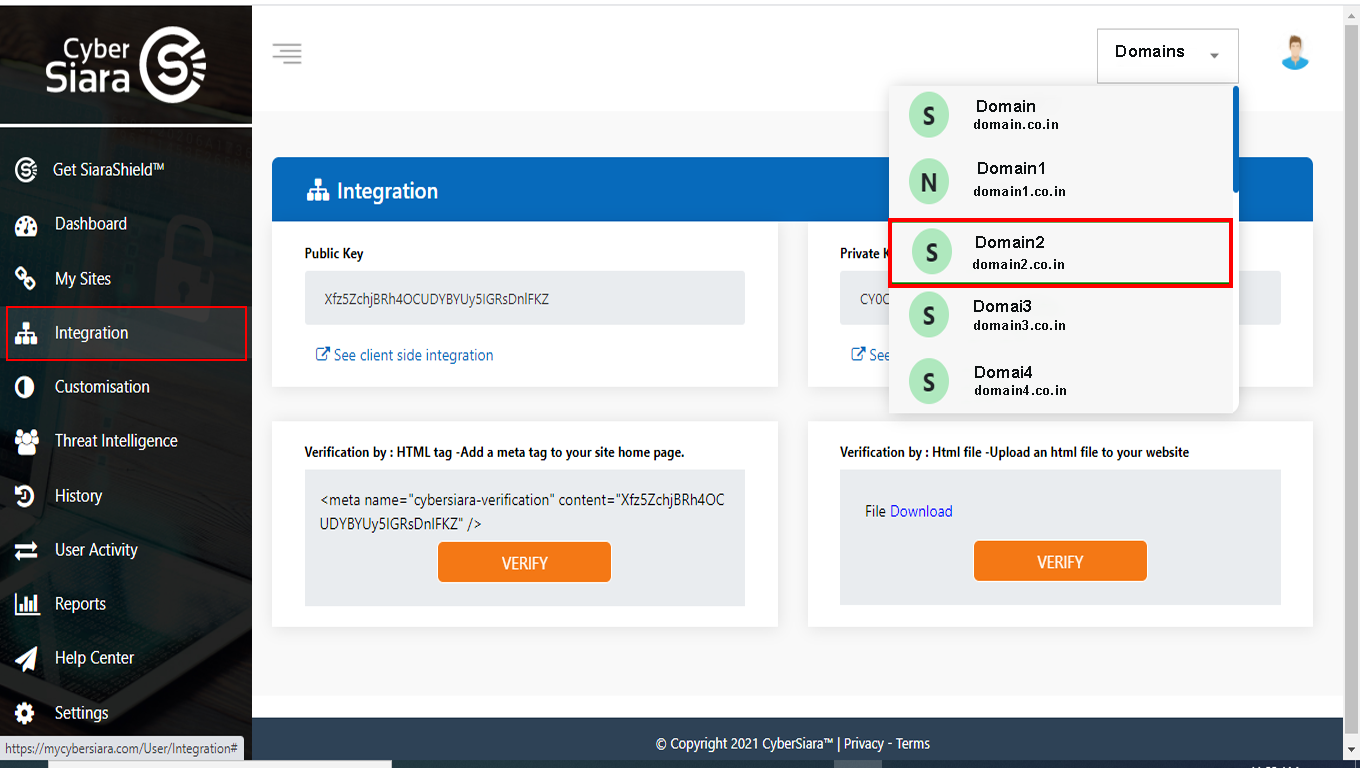
- Choose your type of domain verification from the following options:
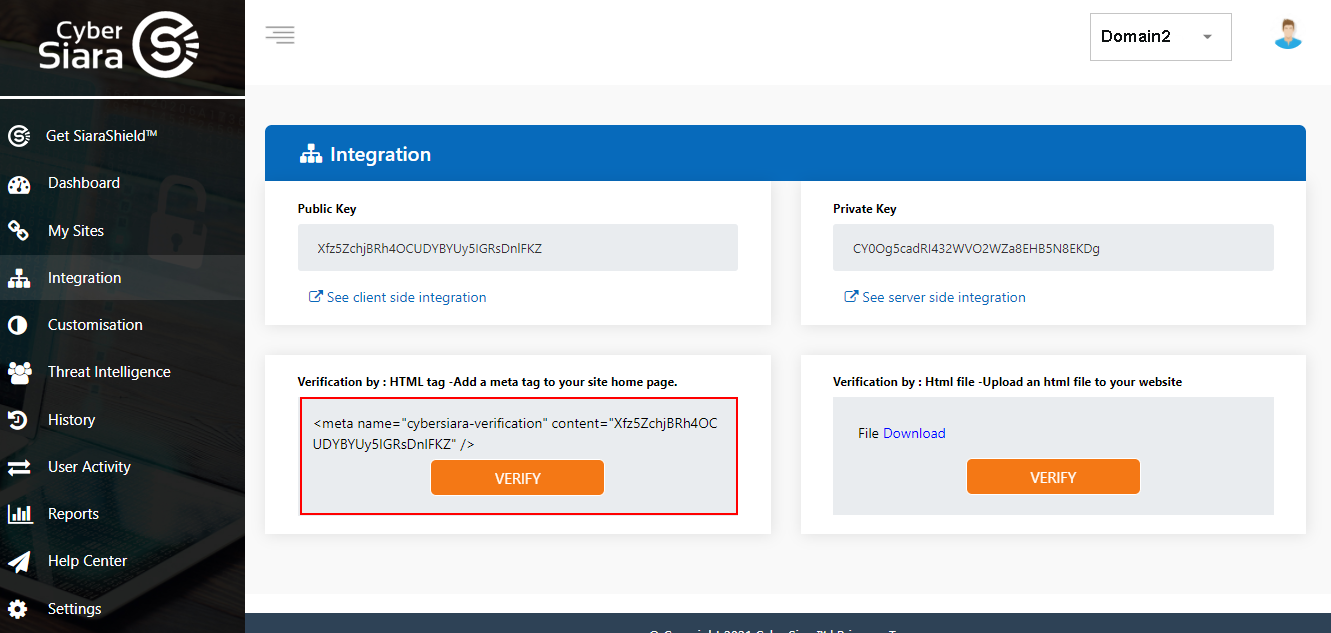
Copy the meta tag and put your domain between the head tags in the main index file. Click the ‘verify’ button and check the meta tag verification. A message confirming ownership verification will be seen. A video of the process can be seen here: Watch meta tag verification
2) HTML File verification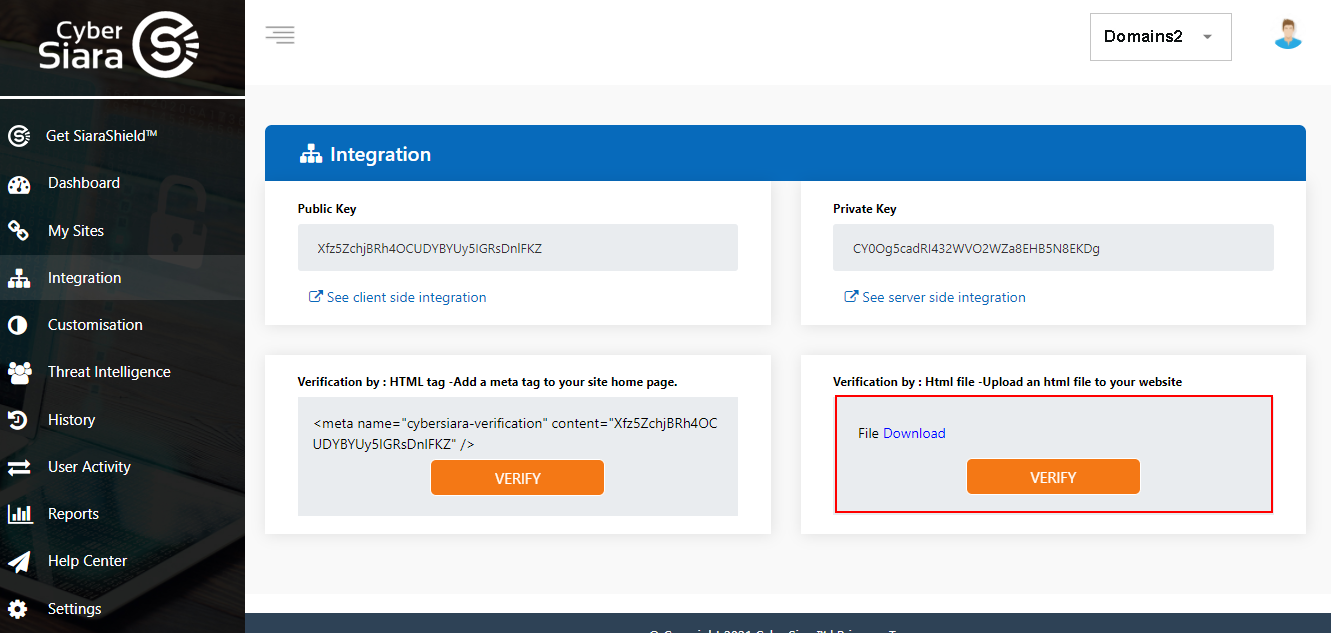
Download the HTML file and enter the server root path. Click the ‘verify’ button and check the HTML verification. A message confirming ownership verification will be seen. A video of the process can be seen here: Watch HTML verification
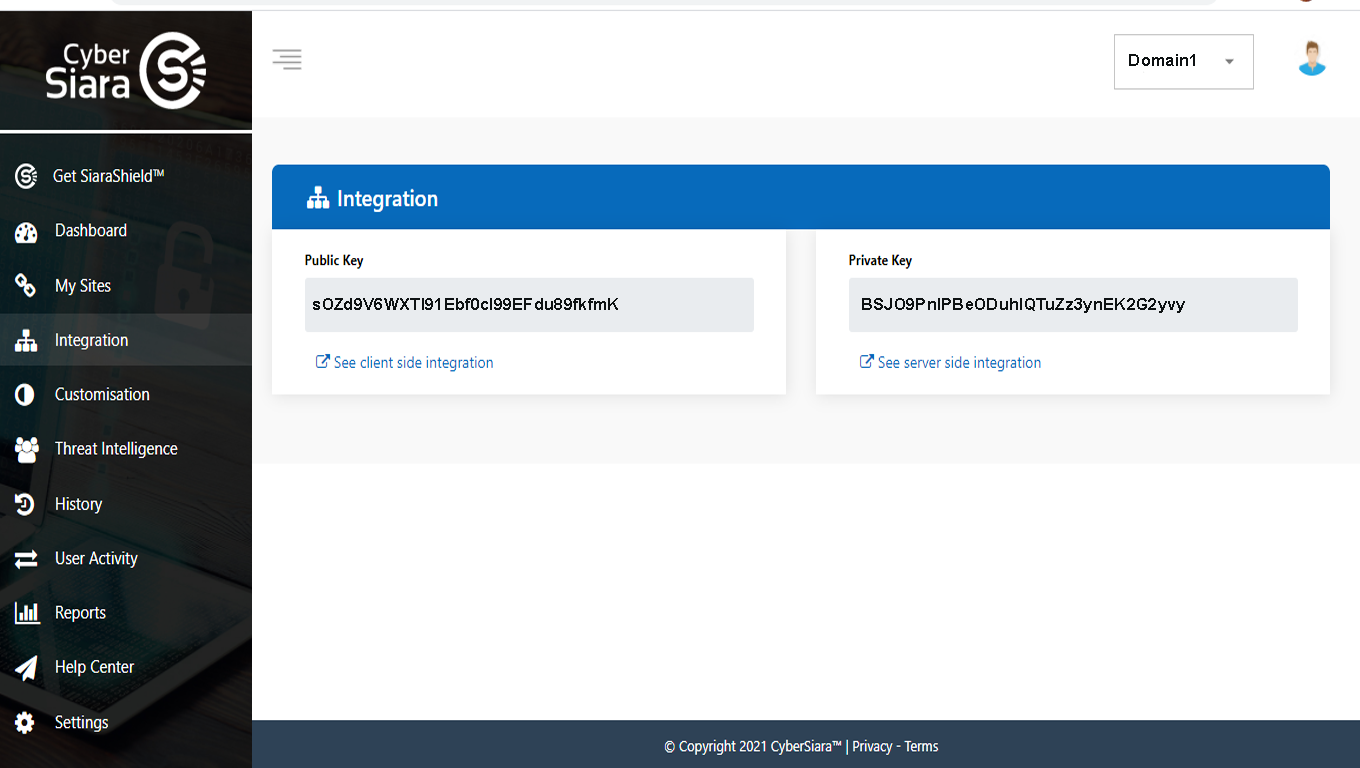
To get Public Keys, take the following steps:
- Log in to https://mycybersiara.com
- Select ‘Integration’ from the left-hand menu.
- Select your domain from the right-hand drop-down menu.
- Check your Public Key and Private Key.
Still need help?
If you cannot find your answer here, our team is ready to help.